
Where are saved documents shown?
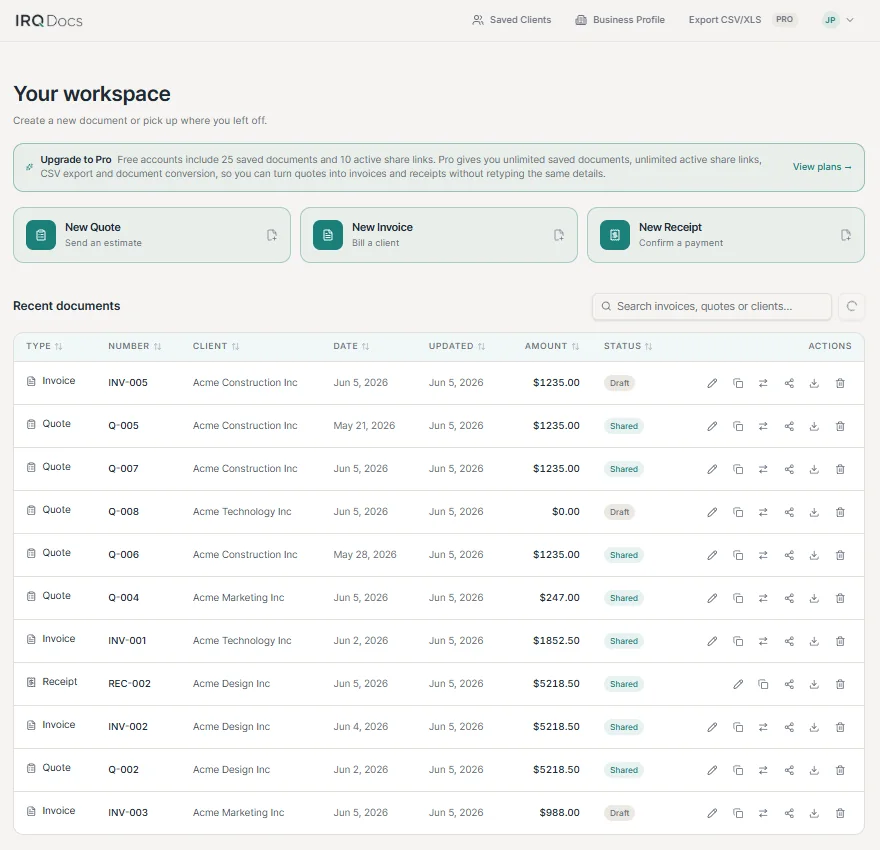
Signed-in users can find saved invoices, quotes and receipts in the Dashboard.
The saved-document list is titled:
Recent documents
A saved document remains there until it is deleted.
Signed-in documents only
Documents created without signing in are not added to the Dashboard.
What information appears in Recent documents?
On a wider screen, each saved-document row can show:
- document type
- document number
- client
- document date
- updated date
- amount
- status
- document actions.
On smaller screens, the same information is condensed into a mobile document card.
The current status is either:
- Draft
- Shared
How do I search for a document?
Find the search field above Recent documents.
Its placeholder says:
Search invoices, quotes or clients…
To search:
- select the search field
- enter part of the document number, client, business name or document type
- review the matching documents
- open the correct result.
You do not need the full name or number
A partial document number or client name can be enough to narrow the list.
What does search check?
Dashboard search checks:
- document number
- client name
- business name
- document type.
Search is not case-sensitive.
For example, searching for invoice, INV-, a client surname or part of a business name may narrow the results.
Search does not inspect every document field
Line-item descriptions, payment details and notes are not currently part of Dashboard search.
How do I clear a search?
When the search field contains text, use the clear-search control to remove the query.
You can also press:
Escape
while focus remains in the search field.
The full saved-document list then returns.
Clear the query before changing approach
A previous search remains active until you clear it.
What happens when nothing matches?
When no saved document matches the current query, IRQDocs shows:
- No documents match your search
- Try a different number, client name or business name.
Try:
- shortening the document number
- entering only part of the client name
- checking the spelling
- clearing the search and sorting the full list instead.
What is the default document order?
By default, the Dashboard shows the most recently updated documents first.
A document may move towards the top of the list after it is edited and saved.
Updated is not the issue date
The default order reflects the latest saved change, not necessarily the document’s own date.
How do I sort on a wider screen?
On a wider screen, select a sortable column heading.
Available columns are:
- Type
- Number
- Client
- Date
- Updated
- Amount
- Status.
Selecting the same heading cycles through:
- ascending
- descending
- the default order.
Selecting a different heading starts that column in ascending order.
Column headings are controls
Select the heading itself to change the document order.
How do I sort on mobile?
On smaller screens, use the visible Sort by control.
Available choices include:
- Updated, newest first
- Updated, oldest first
- Date, newest first
- Date, oldest first
- Number, A–Z
- Number, Z–A
- Client, A–Z
- Client, Z–A
- Amount, low to high
- Amount, high to low
- Status, Draft first
- Status, Shared first
- Type, A–Z.
Choose one option and the mobile document list is reordered immediately.
What is the difference between Date and Updated?
Date
The issue date stored in the document.
Updated
The date when the saved document was last changed.
A document can have an older issue date but a recent updated date.
Use Date when organising documents by their own recorded date.
Use Updated when looking for the documents changed most recently.
How do I refresh the list?
Use the Refresh documents control above the saved-document list.
Refreshing reloads the current documents from the account.
This can help after:
- creating a document
- duplicating a document
- deleting a document
- returning from the editor
- changing documents in another browser tab.
The Dashboard may also refresh when the page becomes visible again, but use the refresh control when you want to request an updated list directly.
How do I open the correct document?
- clear any unwanted search query
- choose a useful sort order
- check the document type
- check the document number
- check the client
- check the document date
- check the amount
- check whether the status is Draft or Shared
- select the document row or mobile card
- confirm the correct document opened in the editor.
Selecting a document opens that saved record in the editor.
Check the document number again before editing, duplicating, sharing or deleting it.
Find and open at a glance
- Search
Narrow the list with a number, client, business name or type.
- Sort
Organise the results by the field most useful to you.
- Check
Confirm the type, number, client, date and status.
- Open
Select the correct saved document and continue in the editor.