
Do I need an account to create a document?
No. You can create an invoice, quote or receipt without signing in.
Without an account, you can:
- enter the document details
- check the live preview
- choose a template theme
- download an A4 PDF.
The document is not added to an IRQDocs Dashboard while you are signed out.
If you need to return to the document later through IRQDocs, sign in and save it to your account.
Download is not cloud saving
Downloading a PDF creates a file on your device. It does not add the editable document to your IRQDocs Dashboard.
What changes when I sign in?
Signed-in users can keep editable documents in their IRQDocs account.
A signed-in account adds:
- automatic document saving
- Dashboard access
- saved-document history
- document search and sorting
- read-only share links
- reusable Business profile details
- reusable saved clients.
Some account features and limits depend on whether the account is Free or Pro. Separate guides cover the Business profile, saved clients and share links.
How does automatic saving work?
When you are signed in, IRQDocs saves document changes automatically.
After you change a field, IRQDocs waits briefly before saving the latest document state.
There is no separate Save document button in the editor.
The saved version remains linked to your signed-in account and appears in the Dashboard.
Wait for saving to finish
Before closing the page or leaving the editor, wait until the save status changes from “Saving…” to “Saved”.
How do I know the document is saved?
On wider screens, the signed-in editor shows a save status near the document title.
The status may display:
- Saving…
- Saved
Saving…
IRQDocs is still storing the latest change.
Saved
The latest saved state is available to the signed-in account.
Wait for “Saved” before closing the browser tab or moving away from the editor.
The status is not currently shown in the same place on every screen size
On smaller screens, return to the Dashboard and confirm that the document appears when you need additional reassurance that it was saved.
How do I return to the Dashboard?
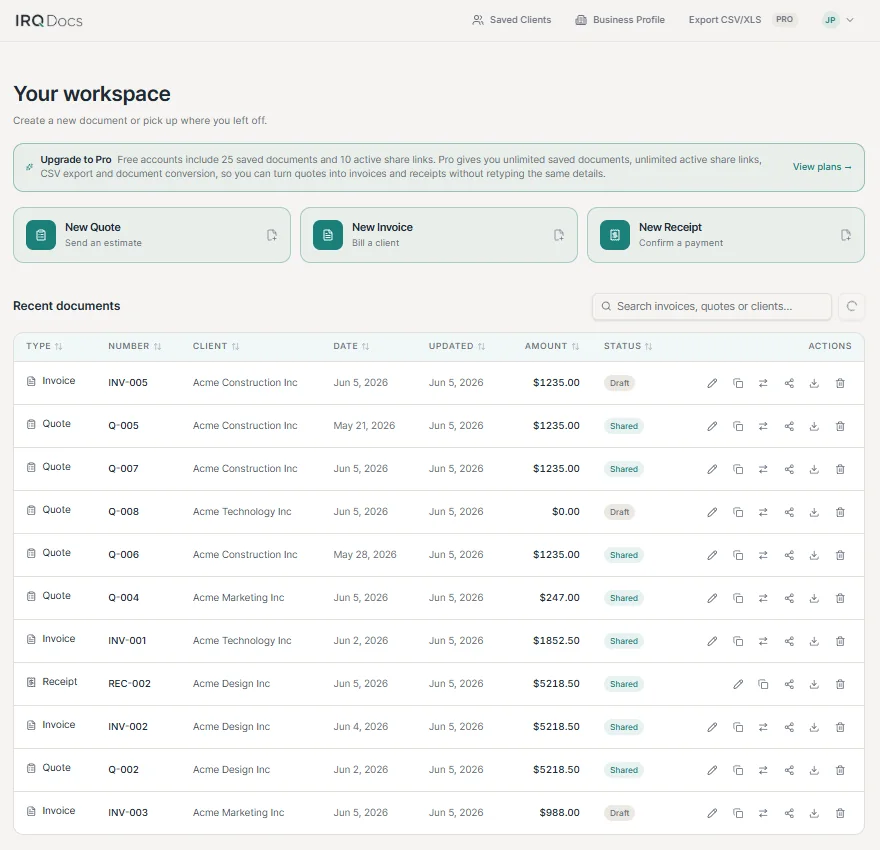
When signed in, select “Dashboard” from the editor header. The Dashboard shows your saved invoices, quotes and receipts.
- Wait for “Saved”
- Select “Dashboard”
- Find the document in Recent documents
How do I reopen a saved document?
Open the Dashboard and find the document you want to continue.
Select the document row or card.
IRQDocs opens the saved invoice, quote or receipt in the editor.
You can then:
- review the saved details
- continue editing
- check the preview
- download a new PDF
- create or replace a share link.
Changes made after reopening are saved back to that document.
Check the document number
Before editing, confirm that you opened the intended document and document number.
How do I create another document?
The Dashboard includes quick actions for:
- New Quote
- New Invoice
- New Receipt.
Select the document type you need.
IRQDocs creates a new document and opens it in the editor.
For signed-in users, the new document receives:
- a document number
- the current date
- saved Business profile details, when available.
What happens when I edit an existing document?
Changes to a reopened document are saved back to that document.
This means the editable Dashboard record is updated with the latest saved details.
Before making changes, check:
- the document type
- the document number
- the client
- the issue date
- the current status.
Download a new PDF after editing when you need the file to reflect the updated document.
Existing PDFs do not update themselves
A PDF already downloaded to your device remains unchanged. Download the document again when you need a revised PDF.
Can I change the document type?
A new unsaved document can begin as a quote, invoice or receipt.
After an existing saved document is opened, IRQDocs does not silently change its type through the editor tabs.
To move through the supported document workflow:
- convert a saved quote into a new invoice
- create a new receipt from a saved invoice.
Quote to invoice
Use the Dashboard action Convert to invoice.
Invoice to receipt
Use the Dashboard action Create receipt.
Conversion creates a separate document and keeps the original document unchanged. See converting a quote into an invoice and creating a receipt from an invoice.
Do not overwrite the original document type
Use the conversion workflow so the original quote or invoice remains available as a separate record.
How many documents can I save?
Saved-document limits depend on the account plan.
Free account
Up to 25 saved documents.
Pro
Unlimited saved documents.
The saved-document limit applies to documents stored in the account Dashboard.
Creating and downloading a document without signing in does not add it to the Dashboard.
What happens when I edit a shared document?
When a meaningful edit is saved to a document with an active share link, IRQDocs removes the existing link.
The document returns from “Shared” to “Draft”.
The old link no longer opens the document.
After reviewing the update, create a replacement share link when the revised document is ready.
Editing does not update the old link
Create and send a new share link after saving and reviewing the changed document.
What should I check before leaving the editor?
- the correct document is open
- the document number is correct
- your latest changes appear in the preview
- the save status shows “Saved”, where visible
- client and business details are correct
- dates are correct
- line items and totals are correct
- payment details or notes are current
- a revised PDF has been downloaded when needed
- a replacement share link has been created when needed.
Return to the Dashboard and confirm that the document appears in Recent documents when you want to check the saved account record.
Save and return at a glance
- Create
Enter the invoice, quote or receipt details in the editor.
- Save
Signed-in changes are stored automatically after a brief delay.
- Return
Open the Dashboard and select the saved document.
- Continue
Edit, preview, download or share the document again.