
What is a share link?
A share link is a browser link to a saved IRQDocs document.
It can be used for:
- invoices
- quotes
- receipts.
The recipient sees a read-only version of the document.
The link is separate from the document editor and does not give the recipient access to your Dashboard.
Anyone with the link can open it
Share the link only with people who should be able to view the document.
Who can create a share link?
Share links are available to signed-in users with saved documents.
To create one, you need:
- a signed-in IRQDocs account
- a saved invoice, quote or receipt
- room within your plan’s share-link limit.
A document created without signing in can still be previewed and downloaded, but it must be saved to an account before a share link can be created.
Open the saved document
Sign in and open the Dashboard.
Find the invoice, quote or receipt you want to share.
You can either open the document or use its Dashboard actions.
- Sign in
- Open Dashboard
- Find the saved document

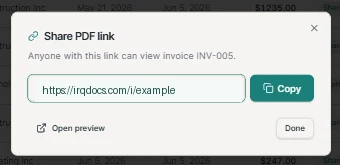
Select Share PDF link
Select “Share PDF link”.
IRQDocs creates or retrieves the active link for that saved document.
The share dialog explains: “Anyone with this link can view [document type] [document number].”
The dialog displays the link and the available actions.
The link is for viewing
The share link opens a read-only document view. It does not open the editor.
Copy or preview the link
The Share PDF link dialog includes:
- Copy
- Open preview
- Done
Select “Copy” to place the URL on your clipboard.
After a successful copy, the control displays “Copied”.
Select “Open preview” to check the recipient view in a separate browser tab.
Select “Done” to close the dialog.
Preview before sending
Open the recipient view and check the document before sending the link to your client.
What can the recipient do?
A recipient with the active link can:
- open the document in a browser
- view the invoice, quote or receipt
- download a PDF.
The recipient does not need to sign in.
The recipient cannot:
- edit the document
- open your Dashboard
- view your other saved documents.
Can do
- view the shared document
- download its PDF.
Cannot do
- edit the document
- access your account
- browse other documents.
What does Shared mean?
After a share link is created, the document status on the Dashboard becomes “Shared”.
This means the saved document currently has an active read-only link.
It does not mean that IRQDocs has confirmed the recipient opened, downloaded or accepted the document.
Shared is a link status
The status shows that an active link exists. It is not proof that the recipient viewed the document.
How many active links can I have?
The active-link allowance depends on the account plan.
Free account
Up to 10 active share links.
Pro
Unlimited active share links.
The limit applies to active links, not the total number of documents you have created over time.
What happens when I edit a shared document?
When a meaningful edit is saved to a shared document, IRQDocs clears the existing share link.
The document returns to “Draft”.
The old link stops working.
This prevents the previous link from continuing to show a document after you have changed the saved version.
- Edit the shared document
- Save the meaningful change
- The old link is removed
- The document returns to Draft
- Review and create a new link
The old link is not updated
Editing a shared document does not refresh the existing URL. Create a new share link after reviewing the changes.
How do I create a replacement link?
After editing the document:
- Review the updated details
- Save the document
- Return to the Dashboard or document controls
- Select
Share PDF link - Copy the new URL
- Preview it before sending
The replacement link is a new URL.
Send the new link to anyone who needs the updated document.
Replace previously sent links
People using the old URL will no longer be able to open the document. Send them the new link when appropriate.
Why might a share link stop working?
A recipient may see “Document not found” and “This share link is no longer available.”
This can happen when:
- the shared document was edited and saved
- the active share link was cleared
- the URL is incomplete or incorrect
- the document or link is no longer available.
Check the document in your Dashboard and create a new share link when the updated document should remain available.
What should I check before sharing?
- the correct document is open
- the document number is correct
- business details are current
- client details are correct
- dates are correct
- line items and totals are correct
- payment details or notes are appropriate
- the recipient view opens
- the PDF downloads correctly
- you copied the current link.
Review the document again whenever you create a replacement link.
For the detail expected on a new document, see how to create an invoice. If you are unsure which document to send, compare invoices, quotes and receipts.
Share-link lifecycle at a glance
Save
The document must be saved to a signed-in account.
Create
Share PDF link creates an active recipient URL.
Share
The recipient can view the document and download its PDF.
Replace
A saved meaningful edit removes the old link so you can create a new one.