
What is the Business profile?
The Business profile is the saved set of business details used to pre-fill new IRQDocs documents.
It can contain:
- business name
- contact name
- address
- country
- email address
- phone number
- Tax ID, VAT number or ABN
- business logo
- default tax rate
- default payment terms
- default payment details.
The profile belongs to your signed-in IRQDocs account.
You can still review and change the details on each new invoice, quote or receipt.
How do I open it?
Sign in to IRQDocs and open the Dashboard.
- Sign inSign in to your IRQDocs account.
- Open DashboardGo to the Dashboard.
- Select Business ProfileOpen the Business profile page.
Select “Business Profile” from the dashboard header.
On smaller screens, open the “Manage” menu and select “Business profile”.
You can also open the Business profile from the account menu.
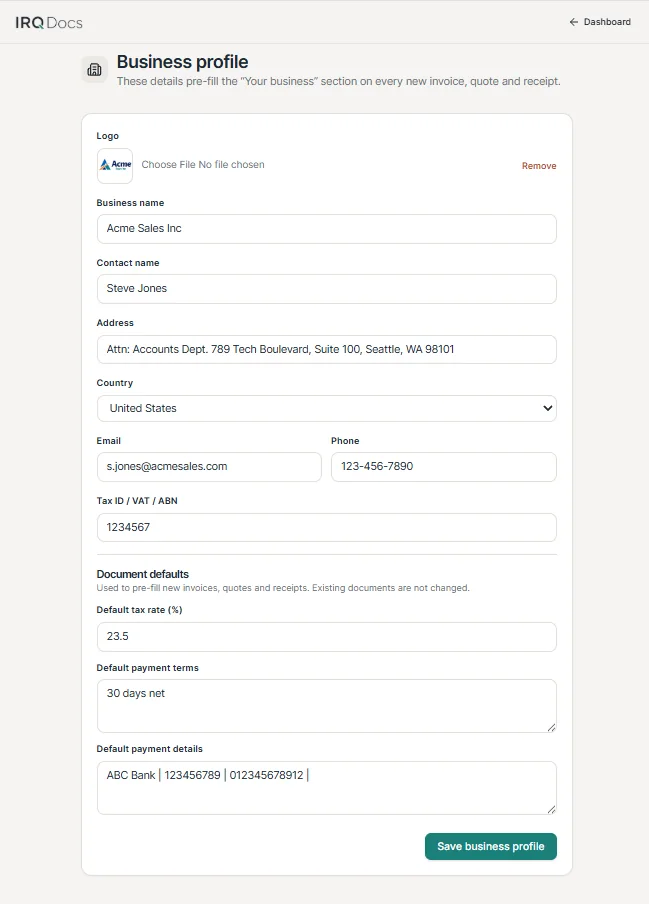
Add your business details
Enter the details that identify your business.
The available fields are:
- Business name
- Contact name
- Address
- Country
- Phone
- Tax ID / VAT / ABN.
Use the details your clients recognise and the information required for your business records.
Review spelling, contact details and tax identifiers before saving.
Add or remove your logo
You can add a business logo from an image file.
When a logo is saved, IRQDocs shows a preview on the Business profile page and can use it on new documents.
To remove the saved logo, select “Remove”.
The file control may still say “No file chosen”
A saved logo can remain visible even when the browser file control says “No file chosen”. The visible logo preview shows which logo is currently stored.
Set a default tax rate
Enter the tax percentage you normally use on new documents.
The default tax rate is used to pre-fill new invoices, quotes and receipts.
You should still check whether the rate is correct for each line item and transaction.
Check the tax treatment
IRQDocs can pre-fill the rate you save, but it does not decide whether tax legally applies.
Add default payment terms
Use Default payment terms for wording you commonly include on new documents.
For example, this may describe:
- when payment is due
- an agreed payment period
- deposit or instalment terms
- late-payment wording.
Keep the wording clear and review it before sending each document.
Add default payment details
Use Default payment details for the information clients normally need to pay you.
This may include:
- bank account information
- payment reference instructions
- accepted payment method
- online payment details.
Only include information that is necessary for payment.
Protect sensitive information
Avoid saving or displaying sensitive information unless it is necessary for the client to make payment.
Save the Business profile
Select “Save business profile” when the details and defaults are ready.
IRQDocs confirms a successful save with the message “Business profile saved”.
- Review the fields
- Select Save business profile
- Wait for the confirmation
The page does not currently use automatic saving.
If you leave before saving, your latest changes may not be stored.
What happens to new documents?
Saved Business profile details pre-fill the “Your business” section on new invoices, quotes and receipts.
Saved document defaults can also pre-fill:
- tax rate
- payment terms
- payment details.
The pre-filled values are a starting point.
Review the document before downloading or sharing it. See how to create an invoice for the full workflow.
What happens to existing documents?
Changing the Business profile does not change documents that already exist.
The current page states: “Used to pre-fill new invoices, quotes and receipts. Existing documents are not changed.”
This means an older invoice, quote or receipt keeps the details already saved with that document.
Existing documents stay unchanged
Update an existing document separately when you need its business details, tax rate or payment information to change.
When should I update the profile?
Review the Business profile whenever your standard business or payment information changes.
- business name changes
- contact details change
- address changes
- tax registration changes
- bank or payment details change
- standard payment terms change
- default tax rate changes
- you replace or remove the logo.
Check the profile periodically so new documents do not begin with outdated information.
Before you save
- check the business name
- check the contact details
- confirm the country
- verify the tax identifier
- confirm the default tax rate
- review payment terms
- review payment details
- check the logo preview.